
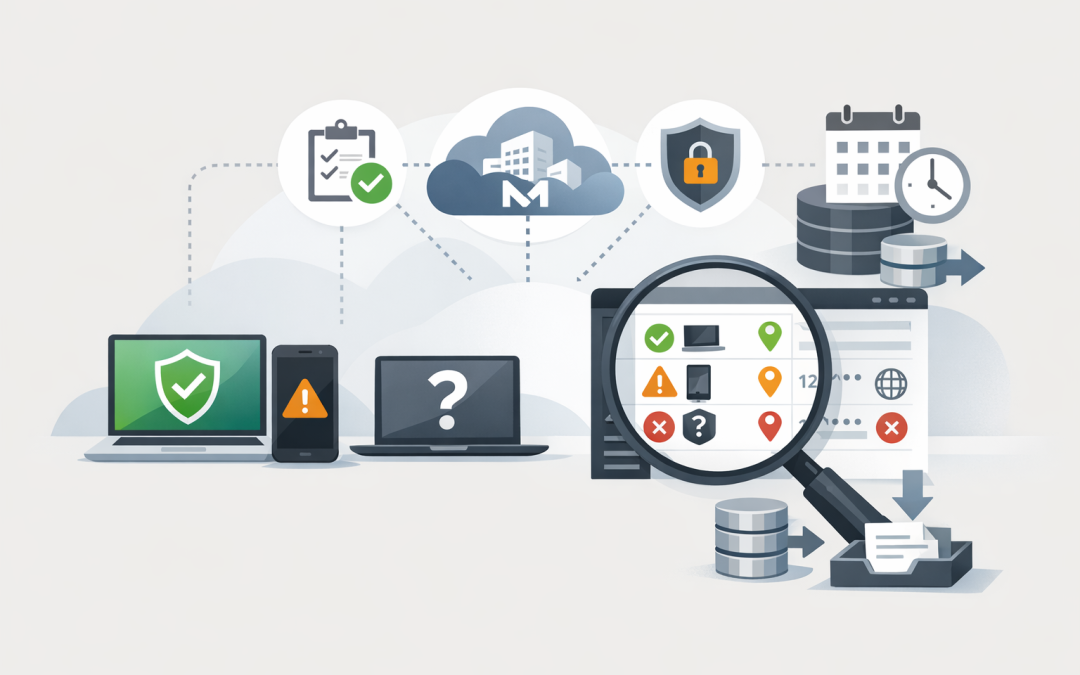
In this blog post How to Find Unmanaged Devices Accessing Your Microsoft 365 Data we will explain how to identify personal laptops, contractor computers and unregistered mobile devices connecting to your business information.
Most organisations assume that if multi-factor authentication is enabled and company laptops are managed, Microsoft 365 data is protected. The problem is that a valid username, password and authentication approval may still allow someone to open Outlook, Teams, SharePoint or OneDrive from a device your IT team cannot monitor or secure.
As discussed in our article on the hidden risk of unmanaged devices accessing Microsoft 365, these connections are easy to overlook. Finding them requires looking at identity, device and access information together rather than relying on a simple device list.
How Microsoft identifies the device behind a sign-in
Microsoft Entra ID, which is the identity service behind Microsoft 365, records sign-in activity. These records can show who signed in, which application they accessed, their approximate location and details about the device or browser they used.
Microsoft Intune, which manages and secures company computers, phones and tablets, provides a second part of the picture. It tells Microsoft whether a device is enrolled, whether required security settings are present and whether the device meets your organisation’s compliance rules.
Conditional Access then acts as the decision point. It checks information such as the user, application, location and device status before deciding whether access should be allowed, blocked or subject to additional requirements.
Three device labels are especially important:
- Registered means Microsoft recognises the device, but your business may not manage it.
- Managed generally means the device is enrolled in Intune or another supported device management platform.
- Compliant means the managed device currently meets your security rules, such as having encryption, an acceptable operating system version and required protection enabled.
A registered device is not automatically a secure device. This distinction is where many Microsoft 365 reviews uncover unexpected risk.
Start with Microsoft Entra sign-in logs
You do not need to begin with scripts or a large security project. Your first step should be reviewing the sign-in evidence already available in the Microsoft Entra admin centre.
- Open Microsoft Entra ID in the administration portal.
- Go to Monitoring and health, then Sign-in logs.
- Select a useful date range and review successful sign-ins to Microsoft 365 applications.
- Open individual records and check the Device info and Conditional Access sections.
- Look for missing device IDs, unmanaged status, non-compliant status and unfamiliar operating systems or browsers.
Do not limit the review to standard interactive sign-ins, where a person visibly enters their details. Applications can also renew sessions in the background, so non-interactive sign-ins may reveal continuing access that is not obvious from the user’s most recent login.
Microsoft Entra records different types of sign-in activity, while its device information can show the operating system, browser and whether the device was reported as managed or compliant.
Treat missing device information as a lead, not a verdict
A blank device ID does not automatically prove that someone used an unsafe personal computer. Some browsers, private browsing sessions, applications and authentication methods do not provide complete device details.
However, repeated successful access with no recognised device identity deserves investigation. Check the user, application, location, IP address, time of access and Conditional Access result before deciding whether it is legitimate.
Compare sign-ins against your Intune inventory
The Entra sign-in logs tell you what is accessing your data. Intune tells you which devices your business actually controls.
Export a list of active devices from Intune and compare it with the devices appearing in Microsoft 365 sign-ins. A computer repeatedly accessing SharePoint or Exchange Online but missing from Intune should be placed near the top of your review list.
Also review Intune’s compliance reports. Intune can identify enrolled devices that are non-compliant, devices without an assigned compliance policy and security requirements that are failing. Microsoft recommends treating devices without a compliance policy as non-compliant rather than assuming they are safe.
This comparison usually produces four useful groups:
- Known, managed and compliant company devices.
- Managed devices that have fallen out of compliance.
- Known personal devices protected through approved applications.
- Unknown or unmanaged devices requiring investigation.
That breakdown gives leadership something more useful than a security score. It shows how many people are affected, what business data is exposed and how much disruption remediation may cause.
Test the impact before blocking anything
Once unmanaged access is identified, the natural reaction is to block it immediately. That can stop legitimate staff, contractors and executives from working if the policy has not been tested properly.
Conditional Access includes a report-only mode. This evaluates a proposed policy during real sign-ins and records what would have happened, but it does not yet block the user.
For example, your IT team can test a policy requiring a compliant device for SharePoint and OneDrive. After a suitable observation period, the report will show which users would be blocked, which devices are involved and whether any business-critical exceptions need to be addressed.
This is where Conditional Access and Intune need to work together. Intune provides the device health information, while Conditional Access uses that information to control entry to Microsoft 365.
Policies should also be checked for exclusions, incomplete application coverage and rules that unintentionally cancel each other out. Our guide to common Conditional Access mistakes covers these issues in more detail.
Choose the right response for each type of device
Company computers
Business-owned computers should normally be enrolled in Intune and required to meet your compliance standards. This gives your organisation control over encryption, updates, security settings and the removal of company data when a device is lost or retired.
Personal phones and tablets
Not every personal mobile device needs full company management. Intune app protection policies can secure business information inside approved applications, controlling actions such as copying company data into personal apps without managing the entire phone.
Contractor and partner devices
Contractors may need browser-only access, restricted downloads or access limited to specific applications. The aim is to give them enough access to complete their work without creating a permanent route into the rest of your Microsoft 365 environment.
Administrator devices
Accounts that can change Microsoft 365 settings should face stricter rules than ordinary users. If an administrator can sign in from an unmanaged home computer, one compromised device could expose the entire organisation.
This is particularly important given the risks covered in our guide to Microsoft 365 administrator accounts.
A typical unmanaged-device discovery
Consider a 180-person professional services business where leadership believed all staff used company laptops. A sign-in review found regular Microsoft 365 access from personal Windows computers, home Macs and several mobile devices that were not covered by approved app protection policies.
Most of the activity was legitimate. Staff were simply trying to work conveniently. But the business had no way to confirm whether those devices were encrypted, patched or shared with family members.
By testing policies first, enrolling company devices and applying protected mobile access for personal phones, the organisation could close the gap without banning flexible work. The outcome was lower data-loss risk, clearer compliance evidence and fewer surprises during customer security reviews.
Why this matters for Australian organisations
Device visibility supports several parts of the Essential Eight, the Australian government’s baseline cybersecurity framework, including patching operating systems, patching applications and strengthening multi-factor authentication. It does not achieve Essential Eight compliance by itself, but it helps prove that security requirements are being applied to the devices accessing business data.
If personal information is accessed without authorisation, Australian privacy obligations may also require the organisation to assess whether an eligible data breach has occurred. Being able to identify the user, device, application and time of access makes that assessment faster and more reliable.
Sign-in information is not retained indefinitely by default. Depending on your Microsoft Entra licence, native activity-log retention is generally limited to between seven and 30 days, so organisations needing longer evidence should send logs to an appropriate monitoring or storage platform.
The questions your IT provider should be able to answer
- How many unmanaged devices accessed Microsoft 365 during the last 30 days?
- Which users and applications were involved?
- Can unmanaged devices download files or only view them online?
- Are personal mobile devices protected at the application level?
- Are access policies actively enforced or only configured in report-only mode?
- How are exceptions approved, documented and reviewed?
If these questions cannot be answered clearly, it may be time for a Microsoft 365 and Intune health check.
Turn device visibility into a practical access plan
The goal is not to block every personal device. It is to know which devices are accessing your information, decide what level of access is appropriate and consistently enforce that decision.
CloudProInc brings more than 20 years of enterprise IT experience to Microsoft 365, Intune, Defender and cloud security reviews. As a Melbourne-based Microsoft Partner and Wiz Security Integrator, we focus on practical fixes that reduce risk without creating unnecessary work for your staff.
If you are not sure whether unmanaged devices are reaching your Microsoft 365 data, we are happy to take a look at your sign-in and device controls and explain what we find in plain English — no strings attached.
Discover more from CPI Consulting
Subscribe to get the latest posts sent to your email.