
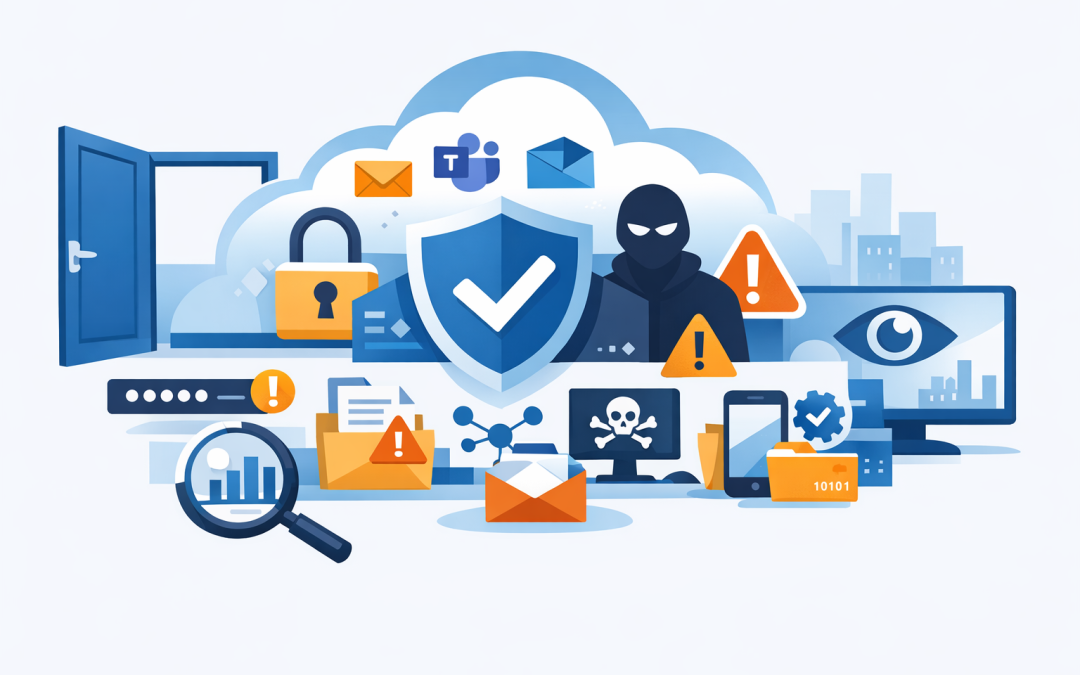
In this blog post Is Your Microsoft 365 Tenant Secure 10 Settings to Check Now we will walk through the Microsoft 365 security settings that many businesses forget to review until something goes wrong.
For most organisations, Microsoft 365 has quietly become the front door to the business. Email, files, Teams chats, customer documents, finance records, HR data, devices, and passwords all sit behind one cloud environment.
That environment is called your Microsoft 365 tenant. In plain English, it is your company’s private Microsoft cloud space. It includes Microsoft Entra ID, which controls who can sign in; Exchange Online, which runs email; SharePoint and OneDrive, which store files; Teams, which handles collaboration; and security tools such as Microsoft Defender and Intune, which help protect users and devices.
The problem is that Microsoft 365 can look perfectly healthy from the outside. Email works. Staff can log in. Teams meetings run. But operational does not always mean secure.
We see this often during Microsoft 365 security reviews. A tenant may have years of small changes, old accounts, forgotten sharing links, risky admin access, and security policies that were never switched on. Nobody meant to create risk. It just built up over time.
This post builds on our earlier articles, including the Microsoft 365 tenant looked fine until we checked the security defaults and the first 10 things we check in a Microsoft 365 security review. Here, we are going deeper into the specific settings business leaders should ask their IT provider to check.
Why Microsoft 365 tenant security matters to the business
A Microsoft 365 breach is rarely just an IT problem. It can become a payroll problem, a privacy problem, a legal problem, and a customer trust problem very quickly.
Attackers do not always need to “hack” complex systems. In many cases, they sign in with a stolen password, approve access through a weak authentication method, create a hidden mailbox rule, or use an old file-sharing link that should have been removed years ago.
For Australian businesses, this also links directly to Essential 8, the Australian government’s cybersecurity framework that many organisations are now expected or required to follow. Microsoft 365 can support Essential 8 controls such as multi-factor authentication, restricting admin access, patching devices, hardening Office apps, and protecting backups. But only if it is configured properly.
10 Microsoft 365 settings most businesses forget to check
1. Security defaults or Conditional Access
Security defaults are Microsoft’s basic protection settings for smaller or simpler tenants. Conditional Access is the more flexible version, letting you set rules such as “block sign-ins from risky locations” or “require extra verification when staff log in from an unmanaged device.”
The business risk is simple. If these controls are missing or poorly configured, a stolen password may be enough to access company email and files.
Ask your IT provider: are security defaults enabled, or do we have well-designed Conditional Access policies? If you want a practical deeper dive, see our Conditional Access checklist for Microsoft 365 tenants.
Business outcome: reduced account takeover risk without making everyday work painful for staff.
2. Multi-factor authentication for every user
Multi-factor authentication, or MFA, means users need more than a password to sign in. Usually this is an app prompt, passkey, hardware token, or another approved method.
The common mistake is only enabling MFA for some users, or leaving senior executives, finance users, contractors, and service accounts out of scope. Attackers know this. They look for the weakest account, not the most obvious one.
For Essential 8 alignment, MFA is one of the most important controls to get right. It should cover administrators, remote access, cloud services, email, and sensitive applications.
Business outcome: fewer successful phishing attacks and stronger compliance posture.
3. Legacy authentication
Legacy authentication means older sign-in methods that do not properly support modern security controls such as MFA. Some old mail apps, scanners, printers, and business systems still try to use these older methods.
This is one of the settings we always check because it is a favourite path for password-based attacks. Even if MFA is switched on, legacy authentication can sometimes create a back door if it has not been blocked properly.
The fix is not always “turn it off immediately.” A practical approach is to review sign-in logs, identify anything still using old methods, replace or reconfigure those systems, then block legacy access safely.
Business outcome: lower risk of password spraying, credential stuffing, and silent mailbox compromise.
4. Admin accounts and privileged roles
Admin accounts are the master keys to your Microsoft 365 tenant. They can reset passwords, change security policies, access systems, and sometimes grant themselves more permissions.
Many businesses have too many global administrators. We often find old IT provider accounts, former staff accounts, shared admin logins, and emergency accounts with no clear owner.
A better model is least privilege. That means people only receive the access they genuinely need, for the time they need it. Senior admin roles should use strong MFA, separate admin accounts, and ideally just-in-time access, where elevated permissions are approved for a limited period.
Business outcome: reduced blast radius if an admin account is compromised.
5. External sharing in SharePoint, OneDrive, and Teams
External sharing lets staff send files and folders to people outside the organisation. This is useful for clients, suppliers, partners, accountants, lawyers, and contractors.
It is also one of the easiest ways for sensitive data to drift outside the business. The risk is not always malicious. A staff member shares a folder for a project, the project ends, and the link remains active for years.
Check whether anonymous links are allowed, whether links expire, whether external users need to sign in, and whether guests are reviewed regularly. For many businesses, the right answer is not to block sharing completely. It is to make external sharing visible, controlled, and easy to revoke.
Business outcome: safer collaboration with clients and suppliers without slowing the business down.
6. Third-party app consent
App consent is what happens when a user clicks “accept” and gives an external application access to Microsoft 365 data. Some apps only need basic profile information. Others may request access to email, files, calendars, or contacts.
This is a common blind spot. A harmless-looking productivity app can request broad access, and a user may approve it without understanding the impact.
Your tenant should have clear rules for which apps users can approve themselves and which apps require administrator review. High-risk permissions should not be granted casually.
Business outcome: reduced risk of data exposure through unapproved third-party applications.
7. Mail forwarding and hidden inbox rules
When attackers compromise a mailbox, they often create forwarding rules. These silently send copies of email to an outside address or hide certain messages from the user.
This can be devastating for finance teams. An attacker can watch invoices, learn supplier names, then send a convincing payment change request at exactly the right time.
Check whether automatic external forwarding is blocked. Also check for suspicious inbox rules, especially rules that move messages to hidden folders, delete messages, or forward mail outside the organisation.
Business outcome: lower risk of invoice fraud, payroll fraud, and long-running email surveillance.
8. Defender for Office 365 email protection
Microsoft Defender for Office 365 helps protect users from phishing emails, malicious links, and dangerous attachments. Safe Links checks web links when users click them. Safe Attachments opens suspicious files in a protected environment before delivery.
The issue is that many businesses assume these protections are fully configured because “we have Microsoft 365.” Licensing and configuration both matter. Some tenants have basic protection only, while others have the right licences but weak policies.
Check anti-phishing settings, impersonation protection for executives, Safe Links, Safe Attachments, and quarantine handling. Also check whether users know how to report suspicious emails.
Business outcome: fewer successful phishing attacks and less time wasted cleaning up avoidable incidents.
9. Device compliance through Intune
Microsoft Intune manages and secures company devices such as laptops, desktops, tablets, and phones. It can enforce settings like encryption, screen lock, security updates, antivirus, and whether a device is allowed to access company data.
Without device compliance, a staff member may access sensitive files from an unmanaged home laptop or an old phone with no security controls. That creates risk even if their Microsoft 365 account is protected.
For businesses using hybrid work, this setting is critical. Access should depend not just on who the user is, but also whether the device they are using is healthy and trusted.
Business outcome: safer hybrid work, better Essential 8 alignment, and fewer unmanaged devices touching company data.
10. Audit logs, alerts, and retention
Audit logs are the activity records inside Microsoft 365. They help answer questions such as who accessed a file, who changed a setting, who created a forwarding rule, or when an admin account was used.
Many organisations only discover their logging gaps after an incident. By then, the evidence they need may be incomplete, expired, or difficult to search.
Check that audit logging is enabled, important alerts are configured, and retention meets your business, insurance, and compliance needs. If your organisation has legal, financial, healthcare, or government obligations, this deserves careful attention.
Business outcome: faster incident response, better evidence, and stronger compliance reporting.
A real-world scenario we see often
A 180-person professional services firm asked us to review their Microsoft 365 tenant after a near miss involving a fake supplier invoice. Their IT looked fine on the surface. Staff were productive, email was running, and there had been no obvious breach.
But the review found several quiet risks. There were old external sharing links, too many admin accounts, inconsistent MFA coverage, weak guest controls, and mailbox forwarding rules that nobody had reviewed.
None of these issues required a giant security program to fix. Over a short remediation period, we tightened Conditional Access, cleaned up admin roles, blocked risky forwarding, reviewed guest users, and improved Defender for Office 365 policies.
The business outcome was clear. Lower fraud risk, better visibility, stronger Essential 8 alignment, and fewer uncomfortable questions from the board and insurer.
How to review your Microsoft 365 tenant without overwhelming your team
You do not need to fix everything in one weekend. The best approach is to prioritise the controls that reduce the most risk first.
- Start with identity. Confirm MFA, Conditional Access, admin roles, and legacy authentication.
- Review data exposure. Check SharePoint, OneDrive, Teams, guest users, and external sharing links.
- Check email risk. Review forwarding rules, phishing protection, Safe Links, and Safe Attachments.
- Bring devices under control. Use Intune to manage and secure laptops, mobiles, and remote access.
- Improve visibility. Make sure audit logs, alerts, and reporting are actually useful when something happens.
Microsoft Secure Score can help by showing recommended security actions inside Microsoft Defender. Treat it as a useful guide, not a perfect measure. A higher score is good, but the real goal is reducing business risk in the areas that matter most to your organisation.
Where CloudProInc can help
CloudProInc is a Melbourne-based Microsoft Partner and Wiz Security Integrator with more than 20 years of enterprise IT experience. We work with Australian and international clients across Microsoft 365, Azure, Intune, Windows 365, Microsoft Defender, Wiz, OpenAI, and Claude.
Our approach is practical. We do not hand over a 90-page report full of jargon and leave your team to figure it out. We identify the risks, explain them in business terms, prioritise the fixes, and help implement the changes safely.
If you are not sure whether your Microsoft 365 tenant is properly secured, or whether your current IT provider has checked these settings recently, we are happy to take a look. No pressure, no scare tactics — just a clear view of where you stand and what to fix first.
Discover more from CPI Consulting
Subscribe to get the latest posts sent to your email.